
Walk your shelf and type what you really have. Oja shows the difference and fixes your stock in one save. A simple stock count for Nigerian shops.
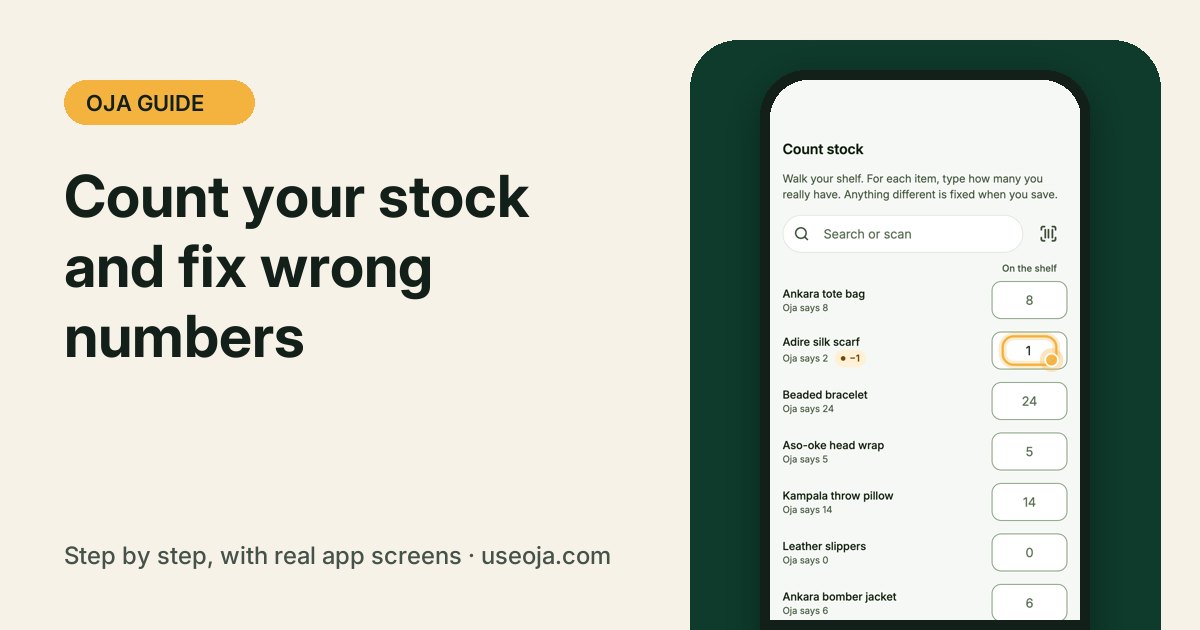
Even with every sale recorded, items get damaged, misplaced or given away. A quick stock count keeps Oja's numbers the same as your shelf, so you never sell what you do not have.
Before you start
- Pick a quiet time, like before you open.
- Have your products added in Oja.
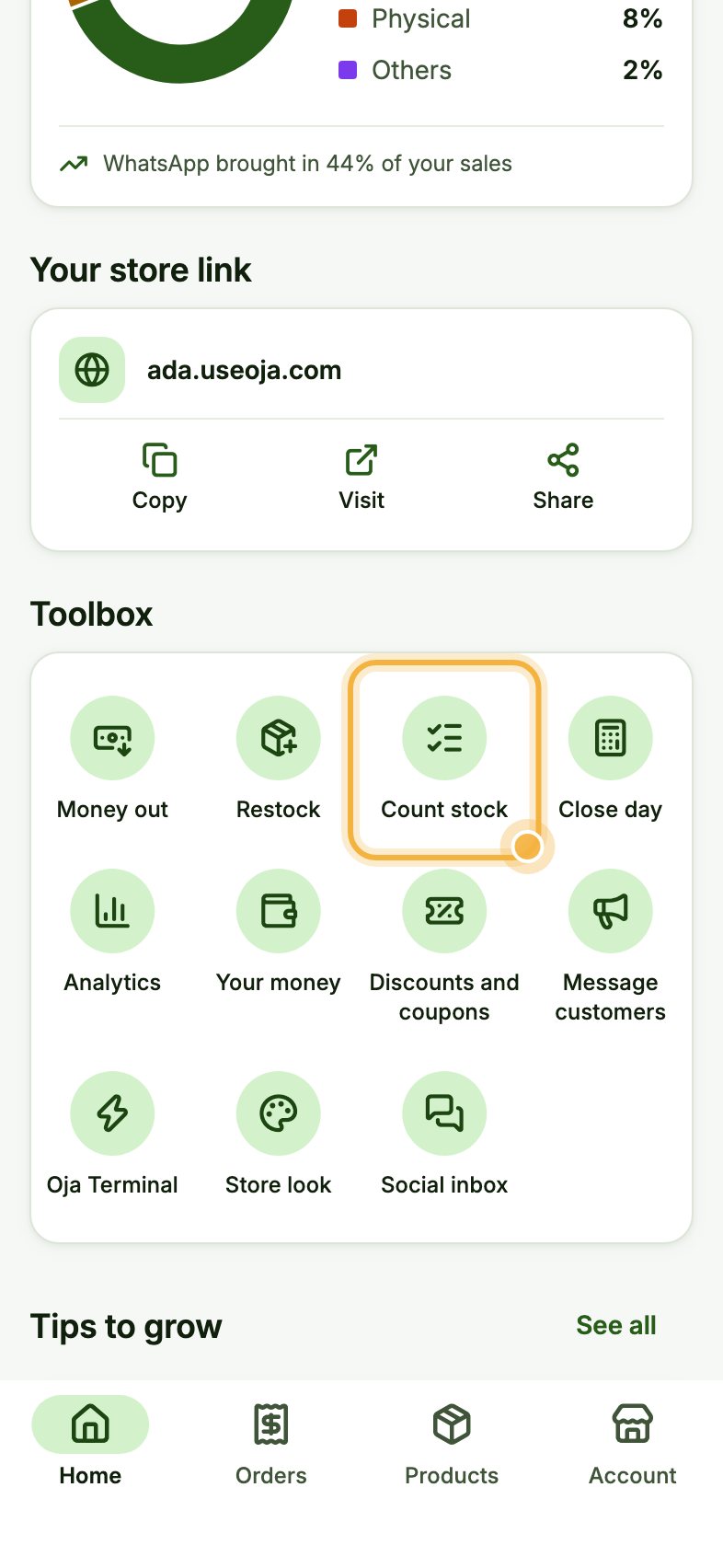
Open the Toolbox on Home, then Count stock
On Home, scroll down to Toolbox and tap Count stock.
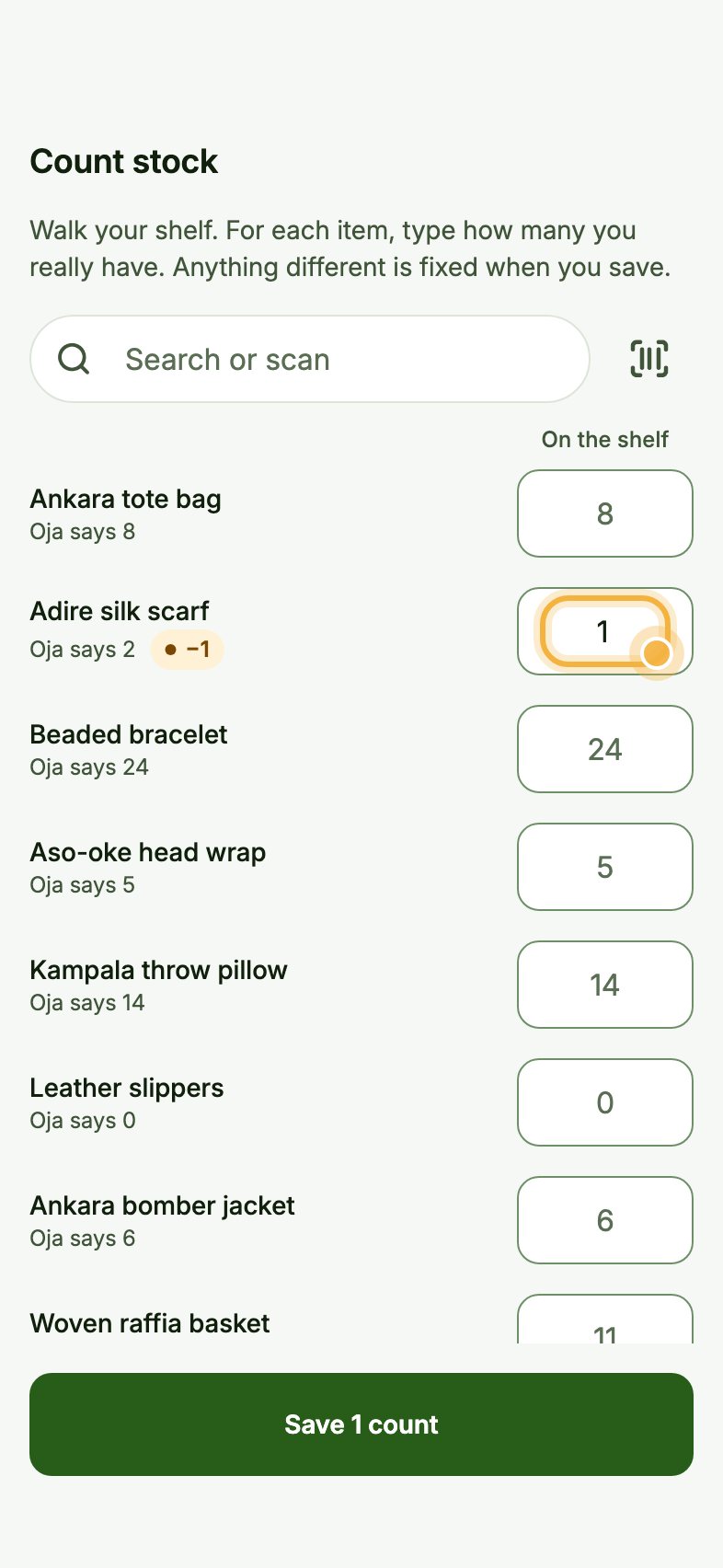
Type what is really on the shelf
For each item, Oja shows Oja says (what it thinks you have). In the box under On the shelf, type what you really count. If it is different, Oja shows the difference, for example −1.
Use Search or scan to jump to an item.
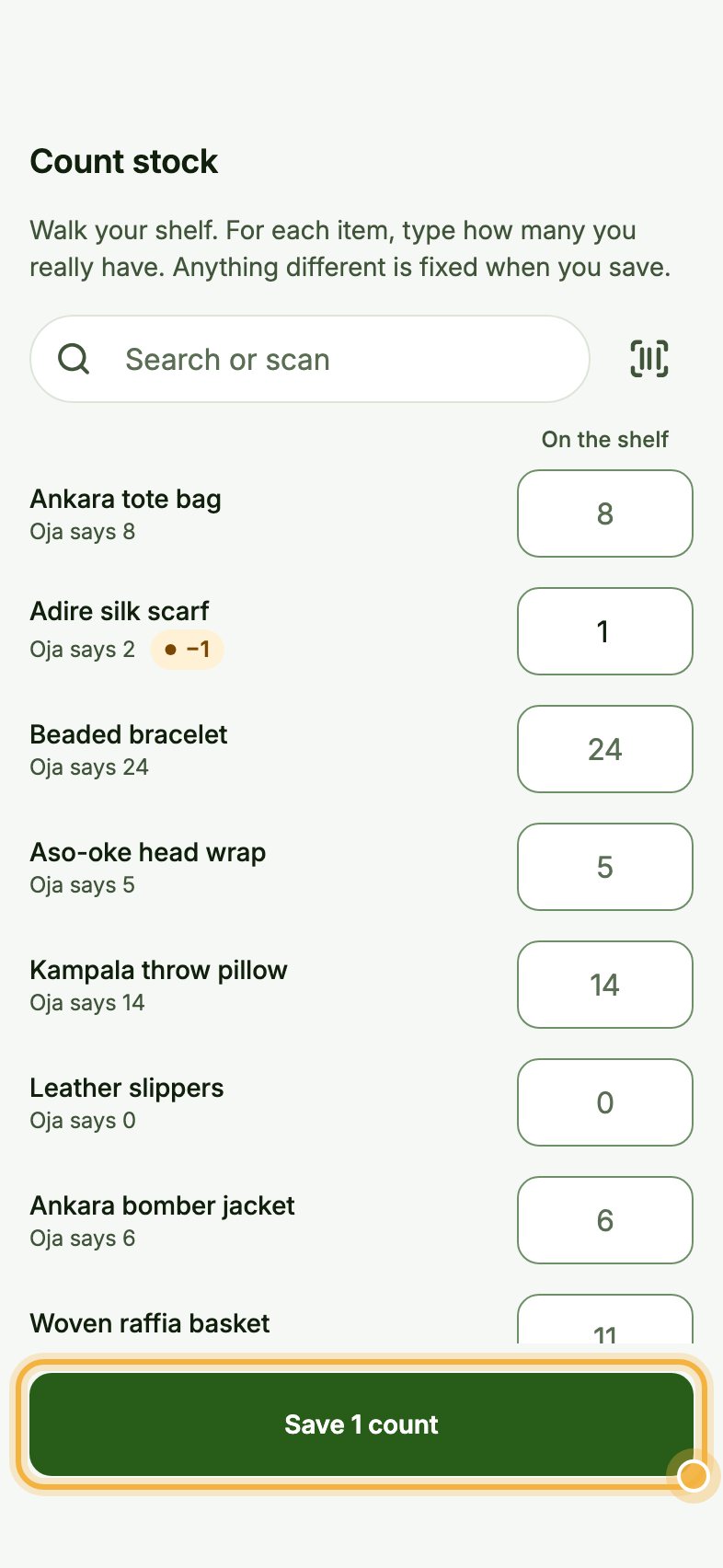
Save your counts
Tap the button at the bottom. It tells you how many counts changed, like Save 1 count. Oja fixes your stock everywhere, including your online store.
Tips that save time
- Count high-value items more often.
- Use Restock in the Toolbox when you buy new stock, so you only count to check, not to add.
- Every change is saved with a reason, so you can see what happened later.
Try it in the Oja app
Oja is free to start. Download the app, open your store in minutes and follow this guide on your own phone.
Start selling free