
Record every sale in seconds with the Oja app: pick products, choose how the customer paid, and let your stock update itself. Works offline too.
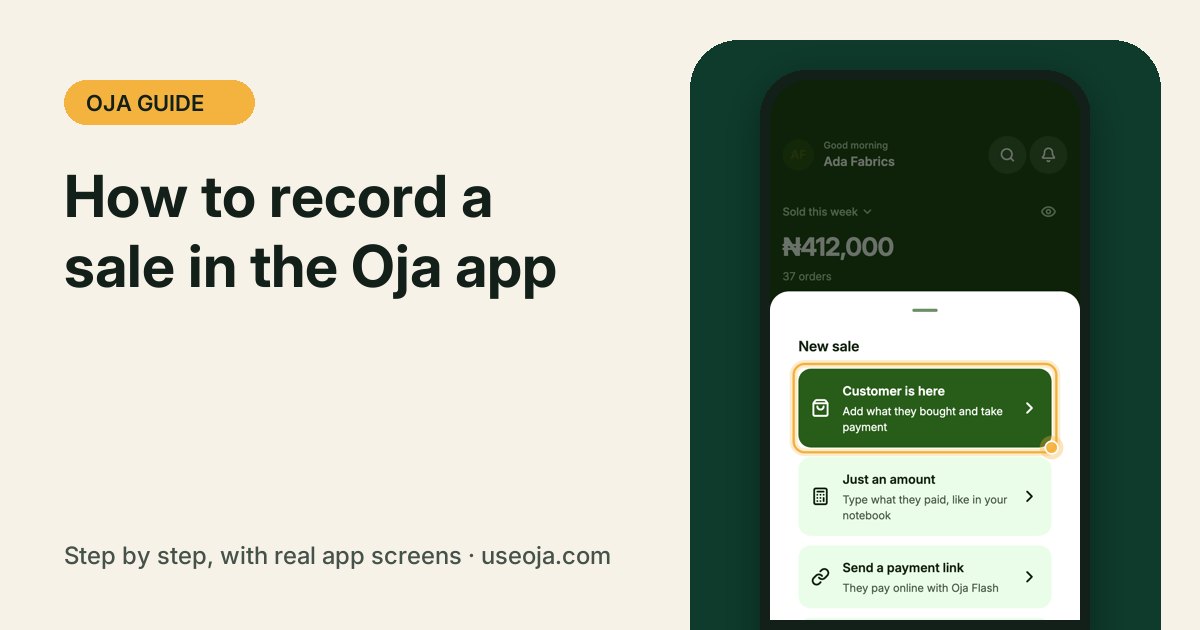
Every sale you record in Oja is saved with the time, the items and how the customer paid, and your stock goes down by itself. This guide shows you exactly where to tap, using real screens from the Oja app.
Before you start
- Install the Oja app and sign in to your store.
- Add the products you sell (see our guide on adding a product). You can still record a sale without products by using Just an amount.
- No internet? Keep going. Sales you record offline are saved on your phone and sync when you are back online.
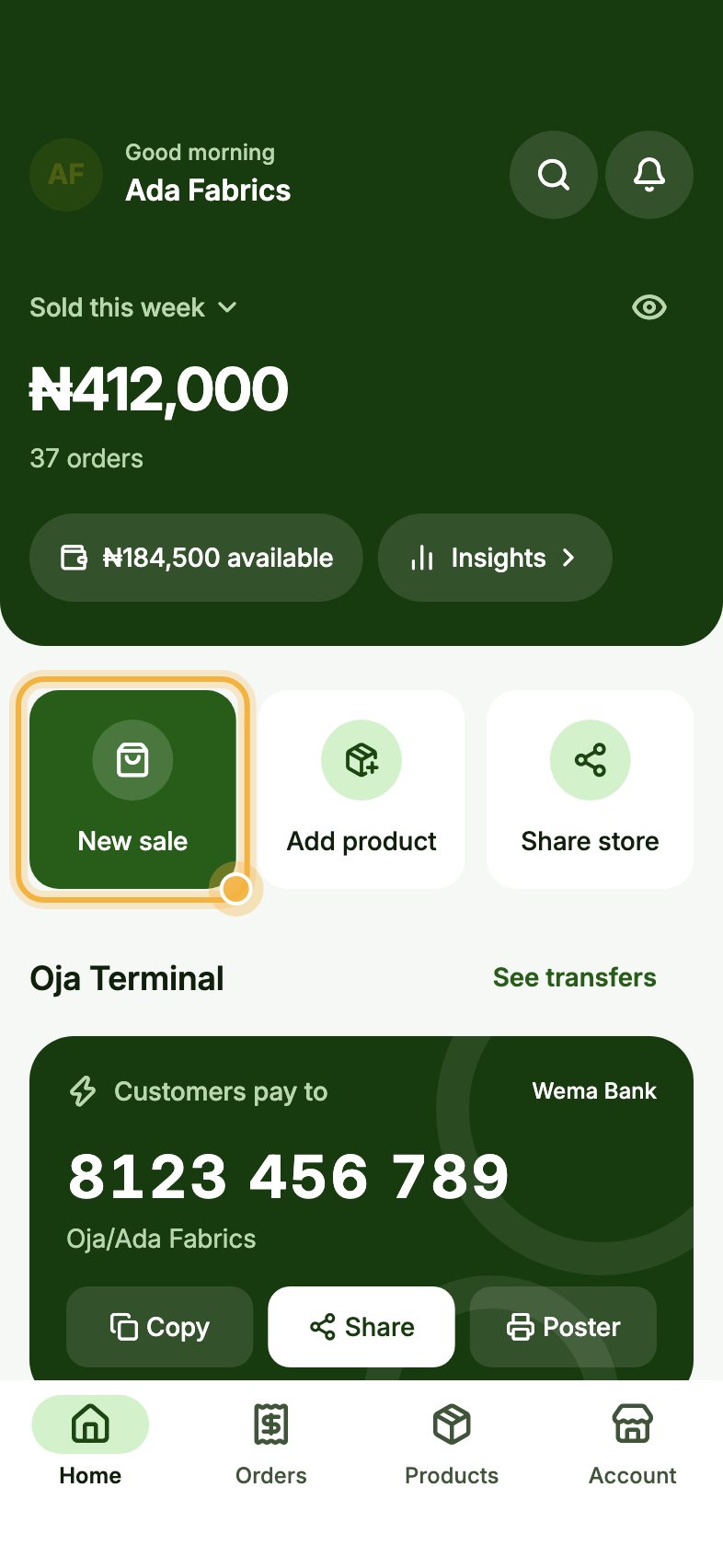
Tap New sale on Home
Open Oja. On Home, tap New sale. It is the first big button under your sales total, highlighted in the picture.
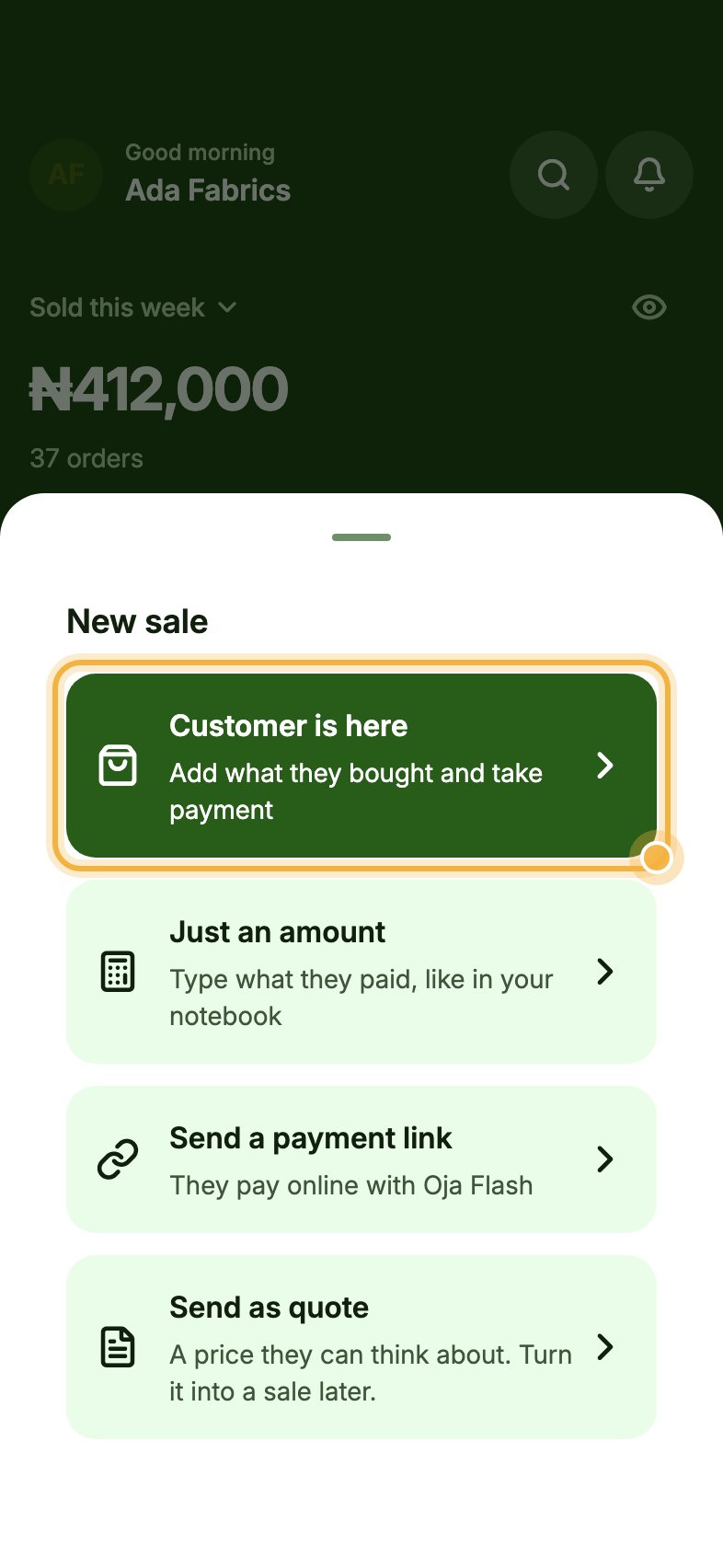
Choose Customer is here
A sheet opens with four ways to sell. Tap Customer is here when the buyer is in front of you or you know exactly what they are buying.
The other options: Just an amount for a quick total, Send a payment link to get paid in a chat, and Send as quote for a price they can think about.
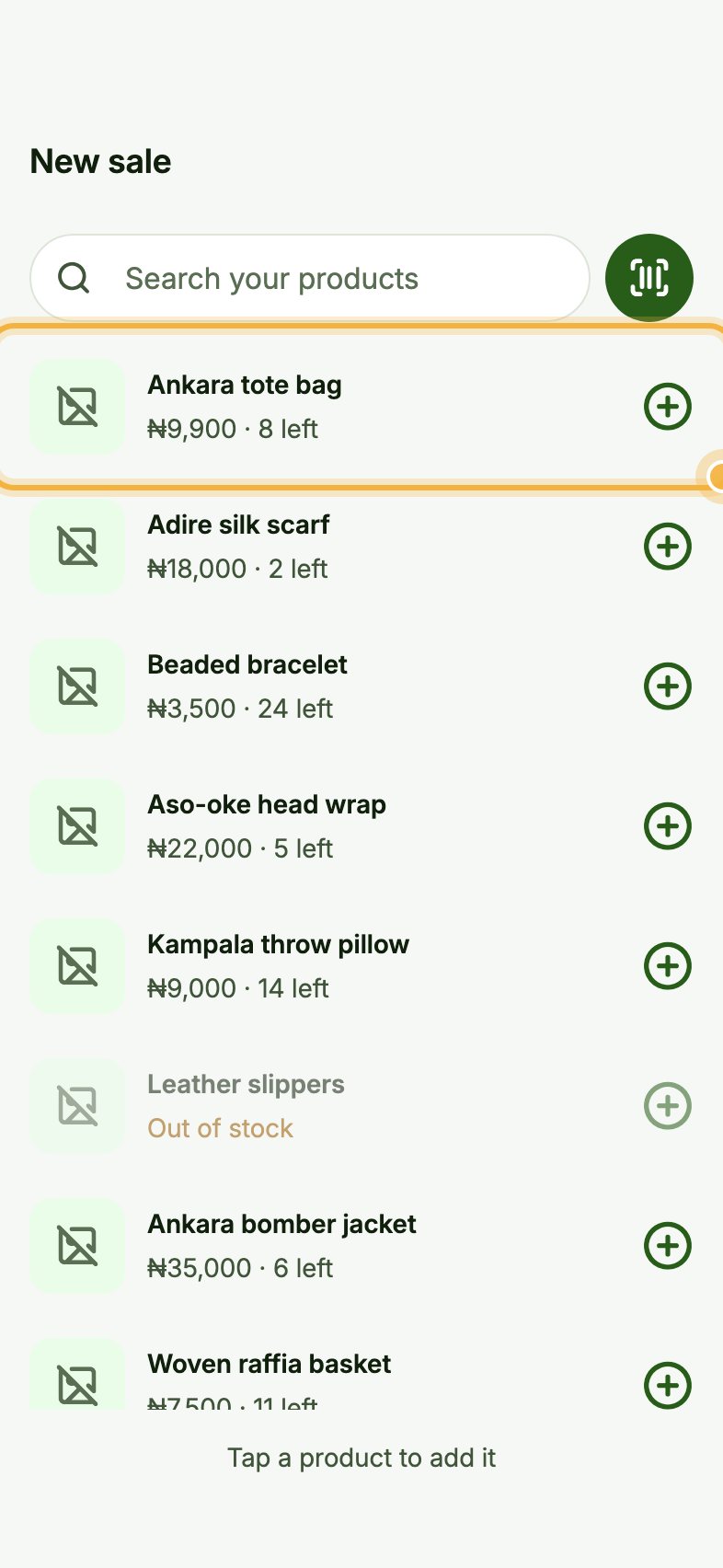
Tap the products they are buying
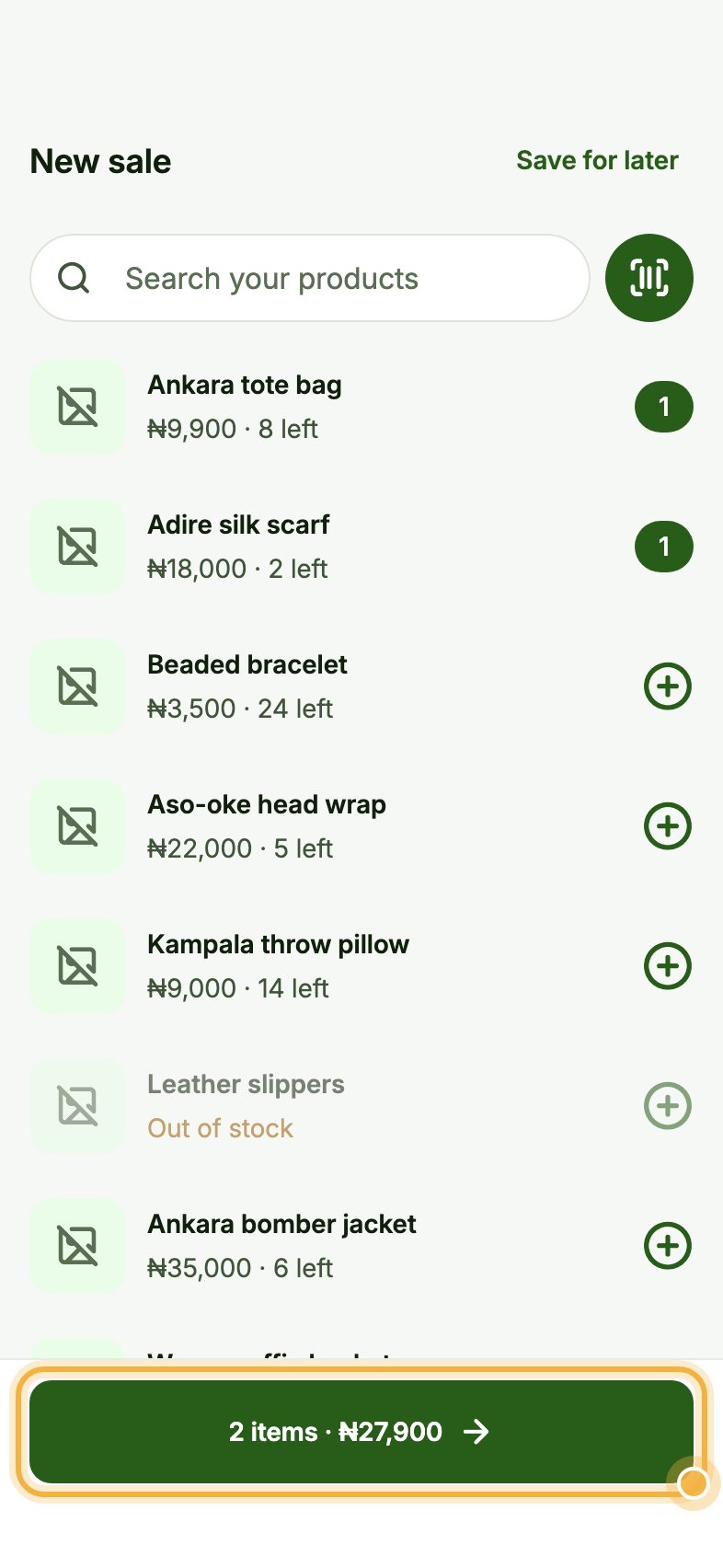
Tap each product to add it. A number appears beside it; tap again to add more of the same item. Use Search your products at the top, or the scan button to read a barcode.
Oja shows how many of each item you have left, so you never sell what is not on your shelf.
Check out and choose how they paid
When everything is in, tap the green bar at the bottom. It shows the number of items and the total, for example 2 items · ₦27,900.
Pick the customer if you want it on their record, then choose how they paid: cash, transfer, card or pay later. Pay later adds the amount to what they owe you. Save, and Oja takes the items out of your stock.
Tips that save time
- Mark where the sale came from (walk-in, WhatsApp, Instagram or TikTok). Home then shows which channel brings in the most money.
- Tap Save for later at the top right to park a half-done sale and finish it when the customer comes back.
- Close the day each evening to check that the cash in your drawer matches your sales.
If something goes wrong
- A product is greyed out and says Out of stock: restock it or fix the count, then try again.
- You recorded the wrong items: open the order from the Orders tab and update it.
Try it in the Oja app
Oja is free to start. Download the app, open your store in minutes and follow this guide on your own phone.
Start selling free